

Word Resume Template Download: Professional Resume Templates for Job Seekers
Introduction
Creating a professional resume can be difficult when you do not know where to start. Many job seekers understand their skills and experience, but they struggle with layout, formatting, structure, and wording. A resume must look clean, read well, and present your qualifications clearly. It also needs to be easy for recruiters and applicant tracking systems to scan.
This is why a Word resume template download can be so useful.
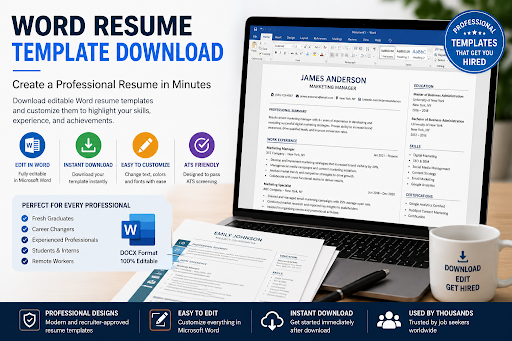
A Word resume template gives you a ready-made structure that you can edit in Microsoft Word or compatible document editors. Instead of designing a resume from scratch, you can start with a professional format, replace the sample text with your own information, and customize the document for your target job.
For job seekers who want a faster and easier way to create a resume, MyCVCreator’s Word Template page provides editable resume and cover letter templates that can help you build a polished application document without needing design skills.
Whether you are a student, graduate, career changer, experienced professional, freelancer, or executive, using the right Word resume template can save time and help you present your career story more effectively.
What Is a Word Resume Template?
A Word resume template is an editable resume file designed for Microsoft Word. It usually comes in a DOC or DOCX format and includes pre-designed sections such as:
- Name and contact information
- Professional summary
- Work experience
- Education
- Skills
- Certifications
- Projects
- Awards
- References or additional information
The main advantage of a Word resume template is that the structure is already created for you. You do not have to worry about margins, spacing, font alignment, headings, or section order. You simply open the template, edit the text, and save your final resume.
A good Word resume template should be clean, professional, easy to edit, and suitable for the type of job you want.
Why Job Seekers Search for Word Resume Template Downloads
Many job seekers search for Word resume templates because Word is familiar, flexible, and widely used. Unlike complex design software, Microsoft Word allows users to edit text, adjust spacing, change fonts, update headings, and export the final document as a PDF.
A downloadable Word resume template is useful because it gives job seekers control. You can customize the resume anytime, update it for different job applications, and keep different versions for different roles.
For example, you may create one resume for administrative jobs, another for customer service roles, and another for marketing or tech positions. A Word template makes it easier to adjust your resume quickly without rebuilding the design every time.
Why a Professional Resume Template Matters
Your resume is often the first impression an employer has of you. Before they meet you, speak with you, or review your portfolio, they usually see your resume first. If your resume looks messy, crowded, outdated, or poorly organized, it may create the wrong impression.
A professional resume template helps your document look polished and structured. It allows recruiters to quickly find important information such as your job title, skills, experience, education, and achievements.
A strong resume template can help you:
- Save time
- Improve readability
- Organize your experience
- Present your skills clearly
- Create a professional first impression
- Keep your resume consistent
- Make your application easier to review
- Avoid poor formatting mistakes
The goal of a resume template is not just to make your resume look attractive. It should also make your career information easier to understand.
Why ATS-Friendly Word Resume Templates Are Important
Many employers use applicant tracking systems, also known as ATS, to manage job applications. These systems help recruiters collect, organize, and search resumes. Because of this, job seekers need resumes that are easy for both software and human recruiters to read.
An ATS-friendly Word resume template should use simple formatting, clear headings, readable fonts, and a logical structure.
Avoid templates that rely too heavily on:
- Graphics
- Icons
- Text boxes
- Complicated tables
- Unusual fonts
- Heavy images
- Decorative layouts
- Over-designed columns
These elements may look beautiful, but they can sometimes make the resume harder to scan.
A good ATS-friendly Word resume template should focus on clarity. It should use standard sections such as Professional Summary, Work Experience, Education, Skills, and Certifications. These headings help both recruiters and systems understand the content of your resume.
Who Should Use a Word Resume Template?
A Word resume template is useful for almost every type of job seeker.
Students and Fresh Graduates
Students and fresh graduates can use Word resume templates to organize education, internships, projects, volunteer work, and entry-level skills. A template helps them create a resume even when they do not have many years of work experience.
Career Changers
Career changers can use Word resume templates to highlight transferable skills. Instead of focusing only on previous job titles, they can organize their resume around relevant abilities, projects, and achievements.
Experienced Professionals
Experienced professionals can use Word resume templates to present years of experience in a clear and concise way. A strong template helps them avoid overcrowding the resume with too much information.
Remote Job Seekers
Remote job seekers can use resume templates to highlight digital skills, communication tools, self-management, project coordination, and online work experience.
Freelancers and Contractors
Freelancers can use Word resume templates to organize client projects, services, achievements, and portfolio links.
Executives and Managers
Senior professionals can use clean Word resume templates to highlight leadership, strategy, team management, business results, and measurable achievements.
How to Choose the Best Word Resume Template
Not every resume template is right for every job. The best Word resume template depends on your career level, industry, experience, and target role.
When choosing a template, consider these factors:
1. Choose a Clean Layout
A clean layout is usually better than an overly creative one. Employers want to find your information quickly. Choose a template with clear sections, good spacing, and simple headings.
2. Match the Template to Your Industry
A creative role may allow a more stylish template, while a finance, law, healthcare, government, or corporate role may require a more traditional design.
3. Make Sure It Is Easy to Edit
The template should be simple to customize. You should be able to replace text, update sections, change dates, and add achievements without breaking the layout.
4. Check for ATS-Friendly Formatting
Avoid templates with too many graphics, icons, or unusual design elements. Choose a layout that is simple and readable.
5. Select the Right Length
Most job seekers should aim for a one-page or two-page resume, depending on experience. A student or recent graduate may need one page, while an experienced professional may need two pages.
What to Include in a Word Resume Template
A strong Word resume template should help you organize the most important resume sections.
Contact Information
Your contact section should include your full name, phone number, professional email address, city and country, LinkedIn profile, portfolio, or personal website if relevant.
Avoid adding unnecessary personal details such as marital status, religion, age, or full home address unless required in your country or industry.
Professional Summary
Your professional summary should be short and targeted. It should explain who you are, what you do, and what value you bring.
Example:
“Results-driven administrative assistant with three years of experience supporting office operations, scheduling, data entry, and customer communication. Skilled in Microsoft Office, document management, and team coordination.”
Work Experience
Your work experience section should include job title, company name, location, dates, and achievement-focused bullet points.
Instead of writing:
“Responsible for customer service.”
Write:
“Handled daily customer inquiries, resolved service issues, and supported positive client relationships through clear communication.”
Skills
Your skills section should include job-relevant abilities. These may include technical skills, software tools, industry knowledge, languages, and measurable abilities.
Examples:
- Microsoft Word
- Excel
- Data entry
- Customer service
- Project coordination
- Social media management
- Sales support
- CRM software
- Report writing
- Graphic design
- SEO
- Coding
- Bookkeeping
Education
Your education section should include your degree, school name, location, and graduation year. Students and recent graduates can also include relevant coursework, honors, or academic projects.
Certifications
If you have professional certifications, include them in a separate section. This can help strengthen your resume, especially in fields such as technology, finance, healthcare, project management, and digital marketing.
Projects
Projects are useful for students, freelancers, tech professionals, designers, writers, and career changers. They help show practical experience.
Awards and Achievements
If you have awards, recognitions, or measurable achievements, include them if they support your target job.
How to Edit a Word Resume Template
After downloading a Word resume template, follow these steps:
- Open the file in Microsoft Word or a compatible editor.
- Replace the sample name and contact information.
- Add your professional summary.
- Insert your work experience in reverse chronological order.
- Add your education and certifications.
- Update the skills section to match the job.
- Remove sections you do not need.
- Add measurable achievements where possible.
- Proofread carefully.
- Save the final version as both DOCX and PDF.
When saving your resume, use a professional file name.
Example:
Daniel-Adeyemi-Resume.pdf
or
Sarah-Johnson-Marketing-Resume.docx
Avoid file names like:
myresume-final-new-version2.docx
A clean file name looks more professional and helps recruiters identify your document easily.
How to Customize a Word Resume Template for Each Job
Downloading a Word resume template is only the first step. To get better results, you should customize your resume for each job application.
Start by reading the job description carefully. Identify the most important skills, duties, tools, qualifications, and keywords. Then adjust your resume to show that you match the role.
For example, if the job description mentions “project coordination,” “Microsoft Excel,” and “client communication,” make sure those skills appear naturally in your resume if you truly have them.
Do not add fake skills. Instead, highlight your real experience using language that matches the job.
A customized resume is stronger than a general resume because it speaks directly to the employer’s needs.
Word Resume Template vs PDF Resume
Many job seekers wonder whether they should send a Word resume or a PDF resume. The answer depends on the employer’s instructions.
A Word resume is useful because it is editable. You can update it anytime and make changes for different jobs.
A PDF resume is useful because it preserves formatting. When you send a PDF, the layout usually stays the same across different devices.
Best practice:
- Keep an editable Word version for yourself.
- Export a PDF version when applying, unless the employer specifically asks for DOC or DOCX.
- Always follow the instructions in the job posting.
Common Mistakes to Avoid When Using Word Resume Templates
A resume template can help you create a better document, but you still need to use it correctly.
Avoid these mistakes:
Leaving Placeholder Text
Always remove sample text from the template. Placeholder text can make your resume look unfinished.
Using Too Many Fonts
Stick to one or two professional fonts. Too many fonts can make your resume look messy.
Overloading the Design
Do not add too many colors, icons, images, or decorative elements.
Writing Long Paragraphs
Use short bullet points instead of large blocks of text. Recruiters usually scan resumes quickly.
Forgetting Keywords
Make sure your resume includes relevant keywords from the job description.
Using the Same Resume for Every Job
Customize your resume for each application.
Ignoring Proofreading
Spelling and grammar mistakes can reduce your credibility. Always review your resume before sending it.
Why Download Word Resume Templates From MyCVCreator?
MyCVCreator’s Word Template page gives job seekers access to editable resume and cover letter templates that are simple to customize. The templates are designed to help users create professional application documents without starting from scratch.
With MyCVCreator, job seekers can choose a template, download it, edit it, and prepare a polished resume for job applications.
The page is especially useful because it includes resume and cover letter options, free templates, premium templates, and professional designs for different career needs.
Instead of spending hours formatting a resume manually, job seekers can begin with a ready-made structure and focus on improving their content.
Best Practices for Making Your Resume Stand Out
A template gives you the structure, but your content makes the resume powerful. To make your resume stand out, focus on achievements, clarity, and relevance.
Use strong action verbs such as:
- Managed
- Created
- Improved
- Coordinated
- Developed
- Led
- Supported
- Increased
- Reduced
- Organized
- Delivered
- Trained
- Analyzed
- Implemented
Add measurable results where possible.
Weak bullet point:
“Worked on social media.”
Stronger bullet point:
“Created weekly social media content and helped increase audience engagement through consistent posting and performance tracking.”
Weak bullet point:
“Helped customers.”
Stronger bullet point:
“Resolved customer inquiries, handled service complaints, and supported positive client relationships through timely communication.”
A strong resume is not only about design. It is about showing value.
Final Thoughts
A Word resume template download is one of the easiest ways to create a professional resume faster. It gives you a ready-made layout, saves time, improves structure, and helps you present your skills and experience clearly.
However, the template is only the beginning. To create a strong resume, you must personalize the content, use relevant keywords, include achievements, and tailor your resume to each job.
MyCVCreator’s Word Template page is a useful resource for job seekers who want editable, professional, and easy-to-use resume templates. Whether you are applying for your first job, changing careers, moving into a new industry, or updating your professional profile, a well-designed Word resume template can help you build a stronger application.
Start with a clean template, edit it carefully, customize it for your target role, and save your final resume in the format requested by the employer.
A better resume starts with a better structure, and a professional Word resume template can help you get there faster.